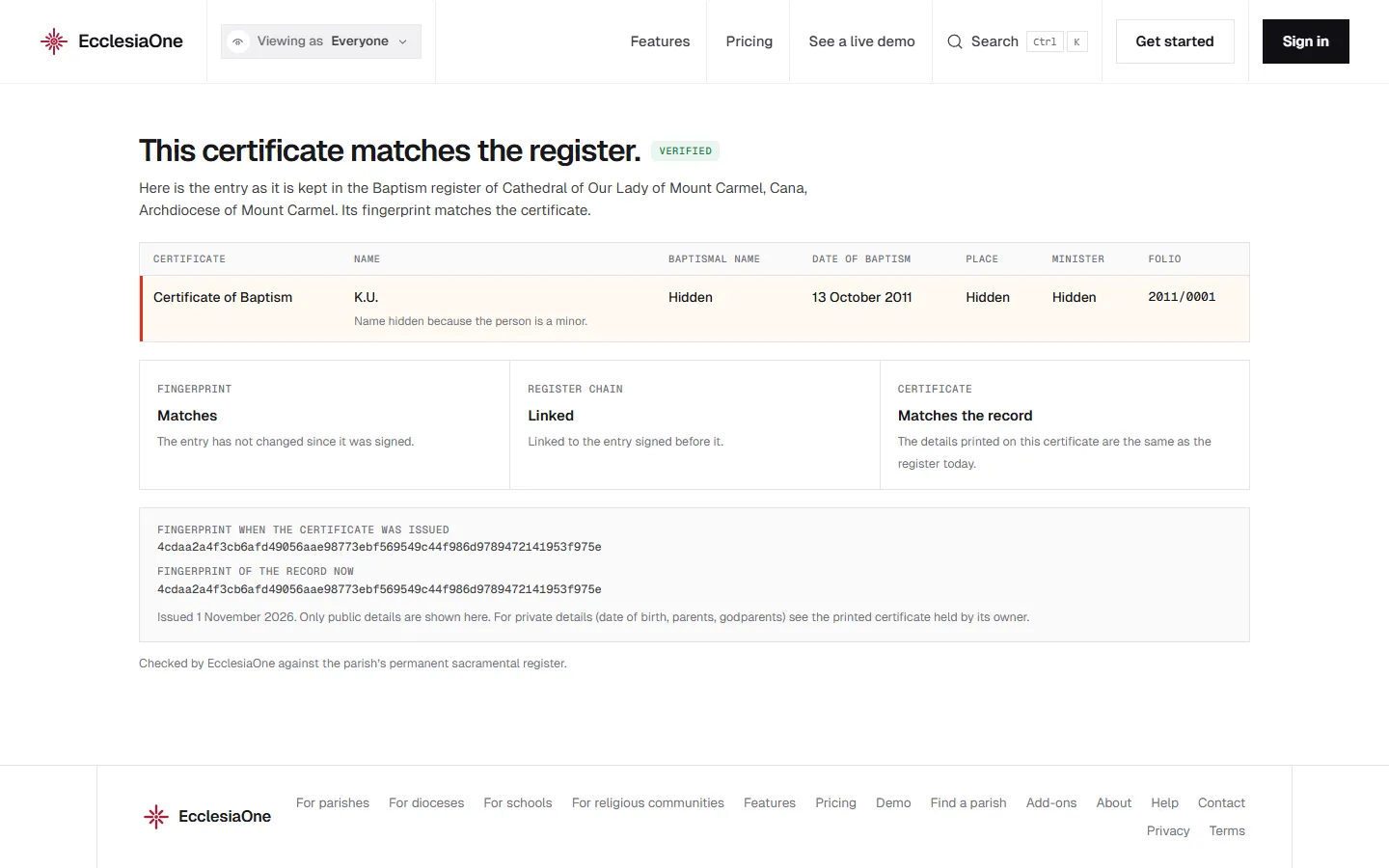
 Anselm's console · sample data
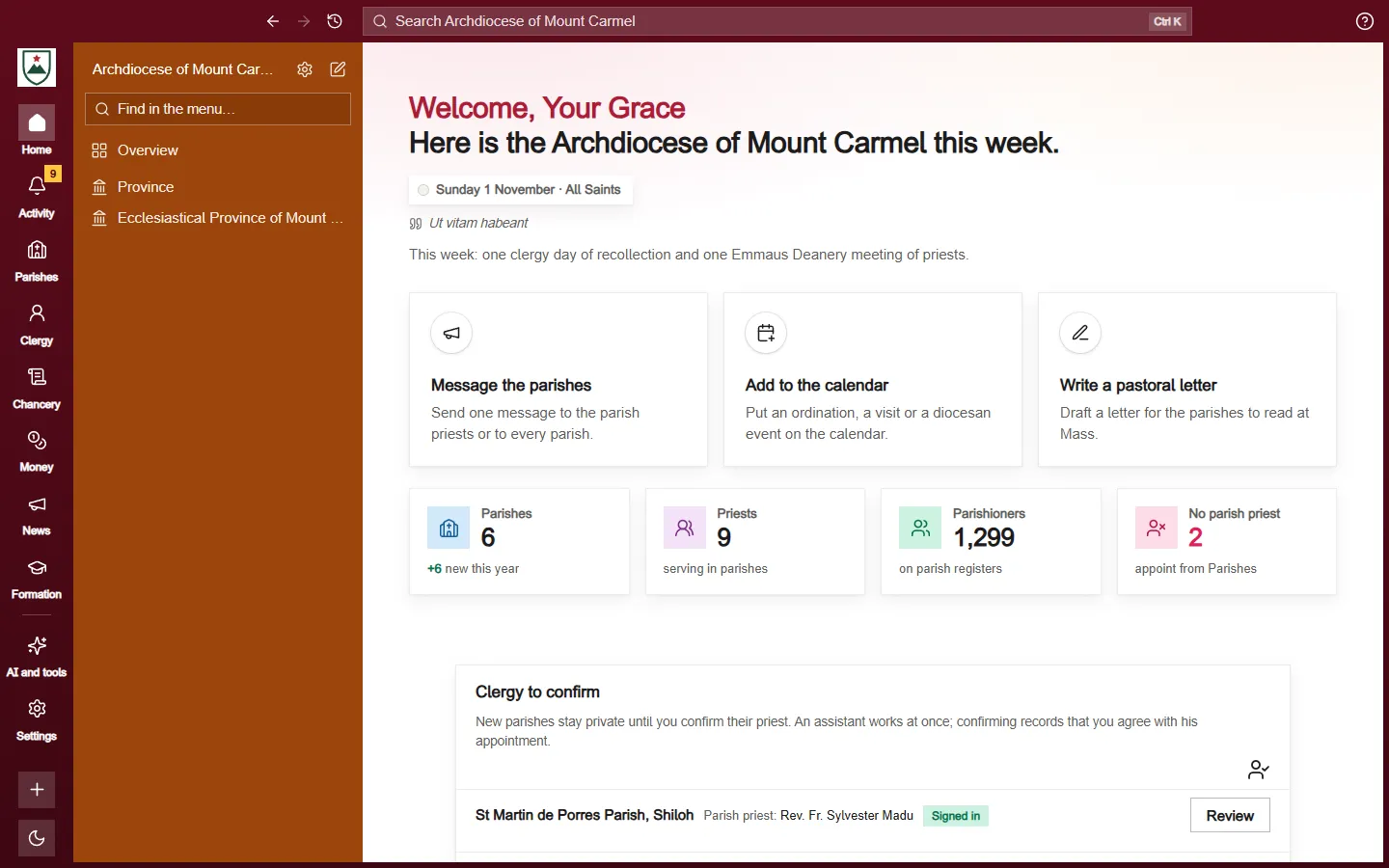
 Dominic's console · sample data
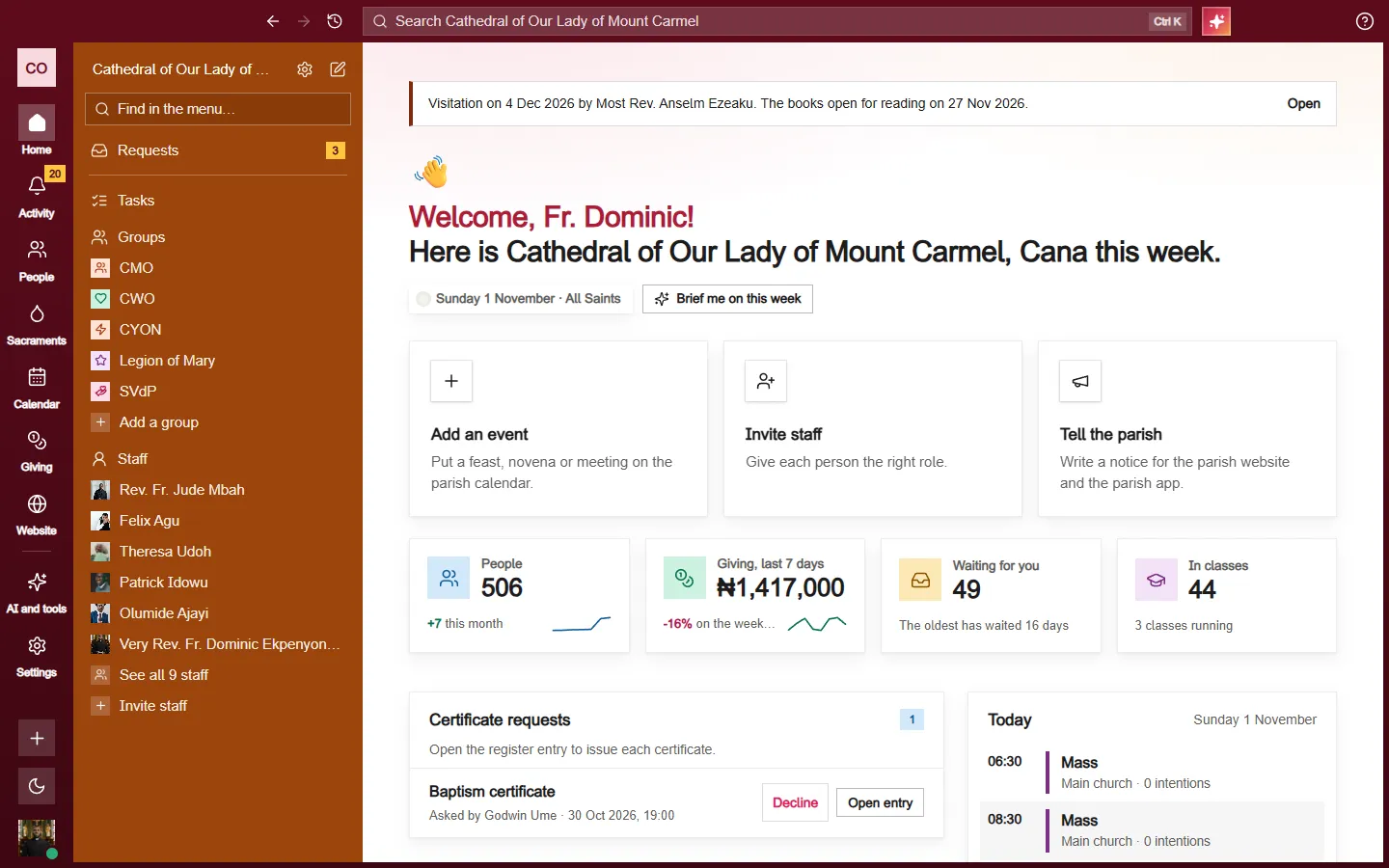
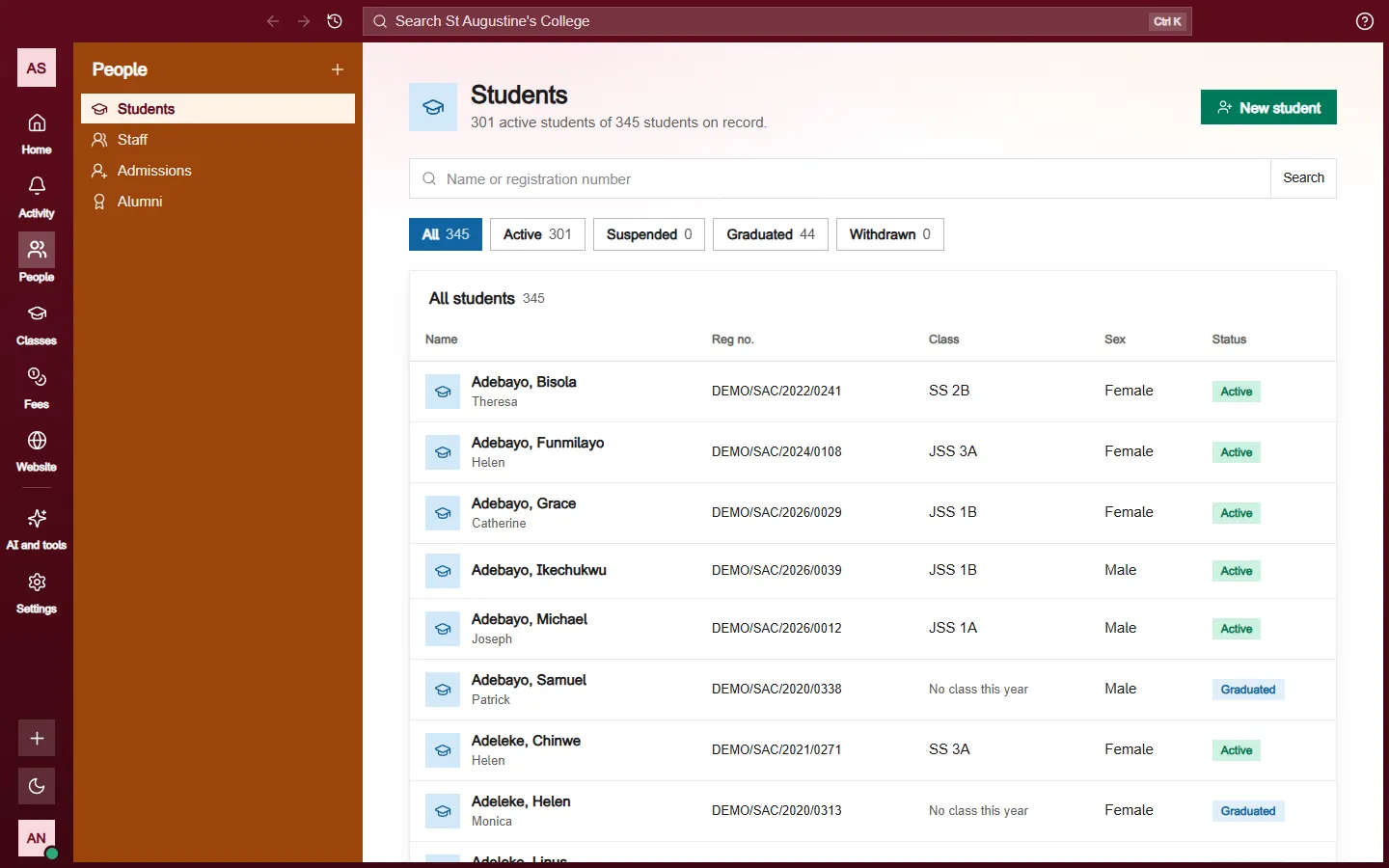
Help centreThe parish office
The parish office
Sacrament requests, online giving, parish broadcasts and your parish website. 21 articles.
15 articles, for diocese
- Adding a ready-made designed sectionPick a finished section from the Add list, see it with your own details first, and put it on your page in one click.
- Ask your parish: the assistantAsk a question in your own words and get a short answer with links to your records, or press Brief me on this week.
- Building your parish websiteA tour of the Website menu: what each part does, and a good order to set up a new site.
- Colours, fonts, logo and bannerSet your website's colours, fonts, logo, crest, banner photo and browser tab icon.
- Editing a section on the pageClick a section to change it, type over its words, add new sections, move them around, and undo a mistake.
- Finishing a section that is not readyWhat an unfinished section looks like on the page, and how to open its settings and fill in what's missing.
- Letting each page change part of a shared blockKeep one block the same on every page, and still let each page change a heading, a photo or a button link for itself.
- Making a page from a templateStart a new page from a ready-made layout, or start a whole website in one go, then fill in the words.
- Making your website on day oneAnswer three short questions, get a finished website to check, then publish it with one button.
- Publishing and draftsWhat Draft and Live mean, how to publish a page or its changes, schedule it for later, take it down, and go back to an earlier version.
- Sacraments, from request to certificateHow a request becomes a signed register entry and a certificate, who does each step, and how to correct a signed entry.
- Saving your own templates and designed sectionsSave a page or a section you like, then use it again on new pages without building it twice.
- Setting up online givingConnect the parish bank account, check the name, and find every gift on the Online giving and Finance pages.
- Using the TrashWhat happens when you delete a page, an article, a form or a photo, how to undo it, and how to bring it back within 30 days.
- Your Contact page and its formMake a Contact page, build the message form, publish it, put it on the page, and read what people send.