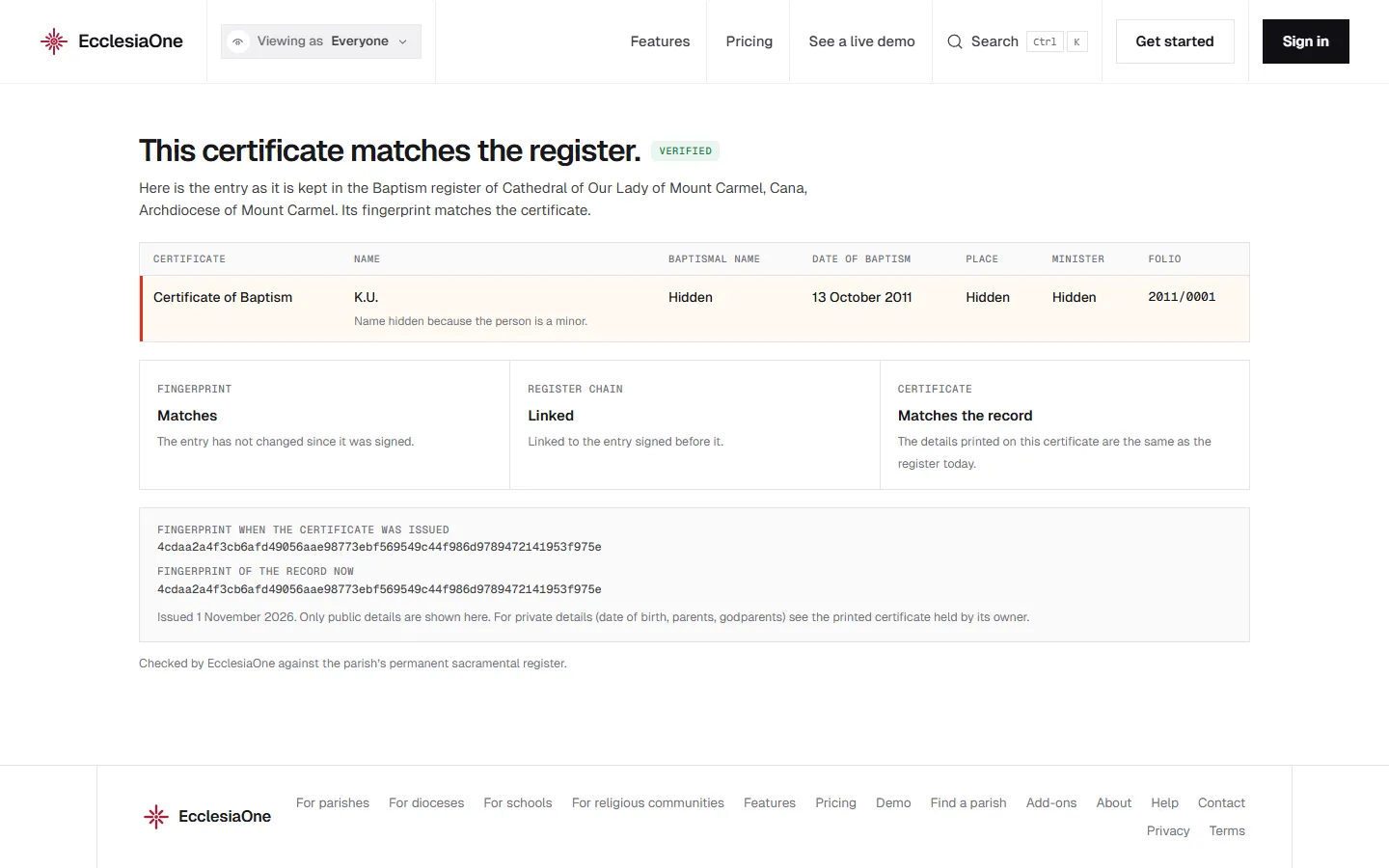
 Anselm's console · sample data
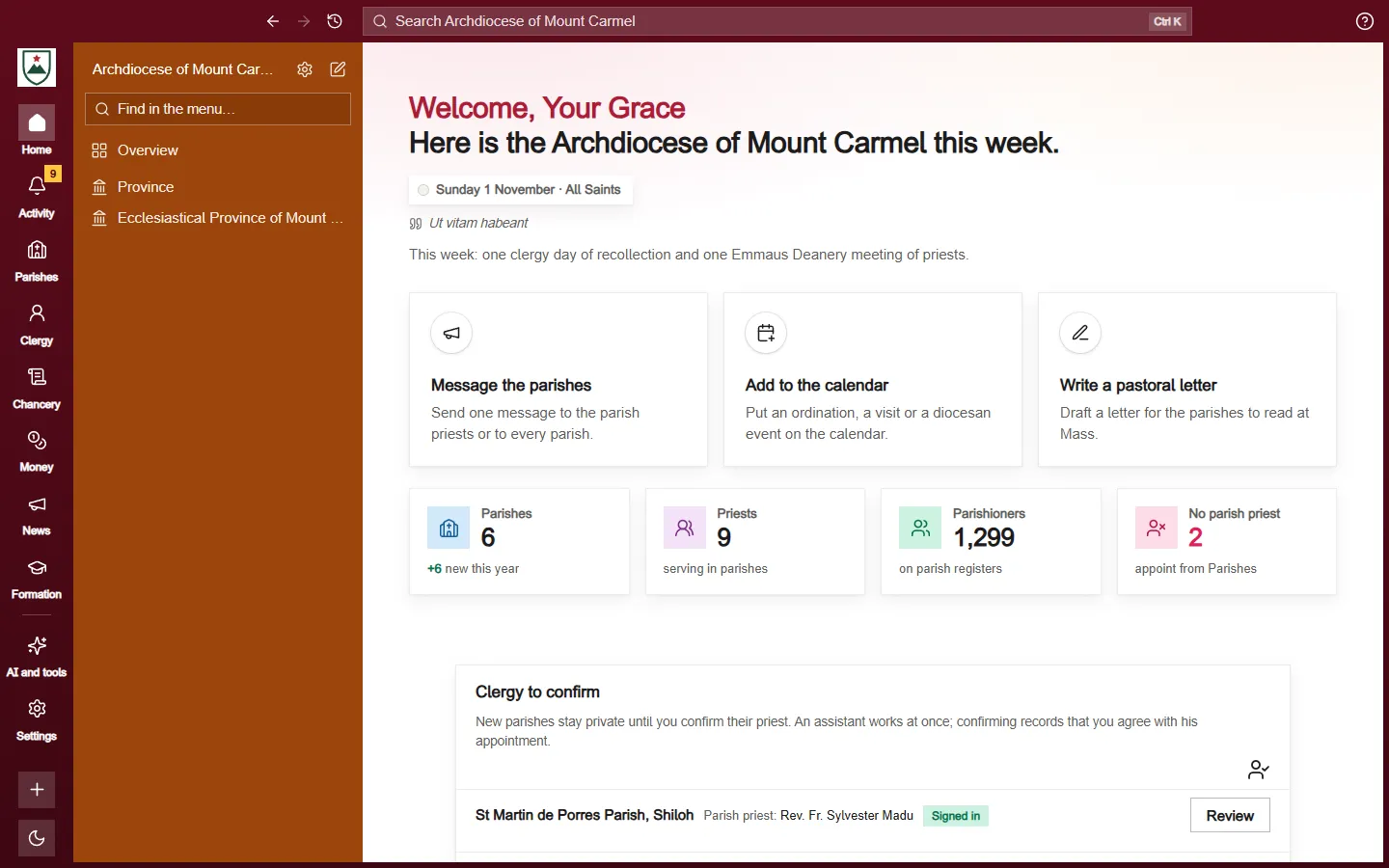
 Dominic's console · sample data
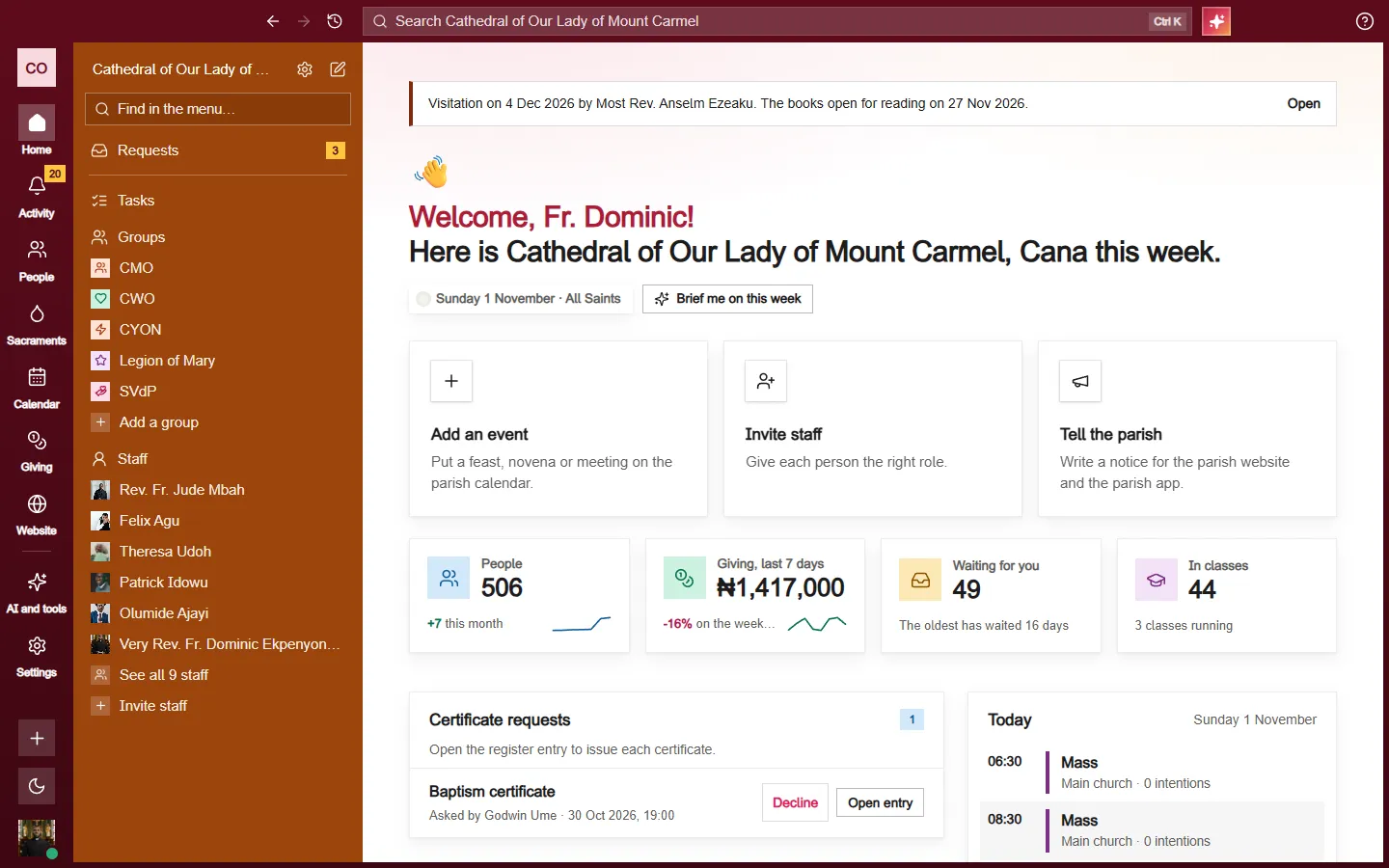
When nobody has worked on your website yet, the Overview shows a box called Make your website. Press Make my website and answer three short questions. EcclesiaOne then builds your home page and your main pages from your own records, as drafts. Nothing goes on your website until you press Publish my site.
Your website already has its design, so the only look you choose is your colours.
Step 1: Your church
A school sees Your school here.
- Type your name as people say it. It shows at the top of every page of your website. The name in your records doesn't change.
- Add a short line under the name if you like, or leave it empty.
- Look at From your records. It shows the facts EcclesiaOne will use. A fact it doesn't have yet says Not in your records yet.
- Press Add a photo to choose a wide photo of your church. You can skip this and add one later. Until you do, a plain frame shows where it goes, with a note only you can see.
Step 2: Your colours
Choose one of these, then press Next.
- Pick one of the colour pairs.
- Press Take colours from my logo, then Use these colours. If your website has no logo yet, you can pick a picture from your device. EcclesiaOne only reads its colours.
- Press Keep the colours I have.
You can change your colours later on the Look page. See Colours, fonts, logo and banner.
Step 3: What visitors need first
For a parish, two things matter most.
- Mass times. Choose Now to add weekly Mass times here: pick the Day and Time and press Add this Mass. Each one goes on your parish schedule straight away. Choose Later to do it from your setup list.
- Online giving. Choose Now to put a Give section on your home page. Visitors see it once the parish bank account is saved. Choose Later to leave it for now.
A diocese or a school has nothing to choose here. A diocese's home page shows its parishes and their Mass times from your records. A school's home page shows admissions and how to reach the office.
This step also lists the pages that will be built as drafts, and the pages your website already has, which stay as they are. Press Build my website.
Check, then publish
The Overview now says Your new website is ready to check. Each page has a Draft label and an Open link, so you can read and change any of them first. Still to add lists what's missing, each with a link.
Press Publish my site when you're happy. Your name, your colours, your photo and all these pages go live together. Press Open your website to see it.
Good to know
- Your old front page is kept. Bring it back from the page's History, under the name "Before your new website".
- Not now closes the steps. The box stays on the Overview until you start your website or publish it.
- A website someone has already started is left exactly as it is.
- Only people who can edit the website can use this.