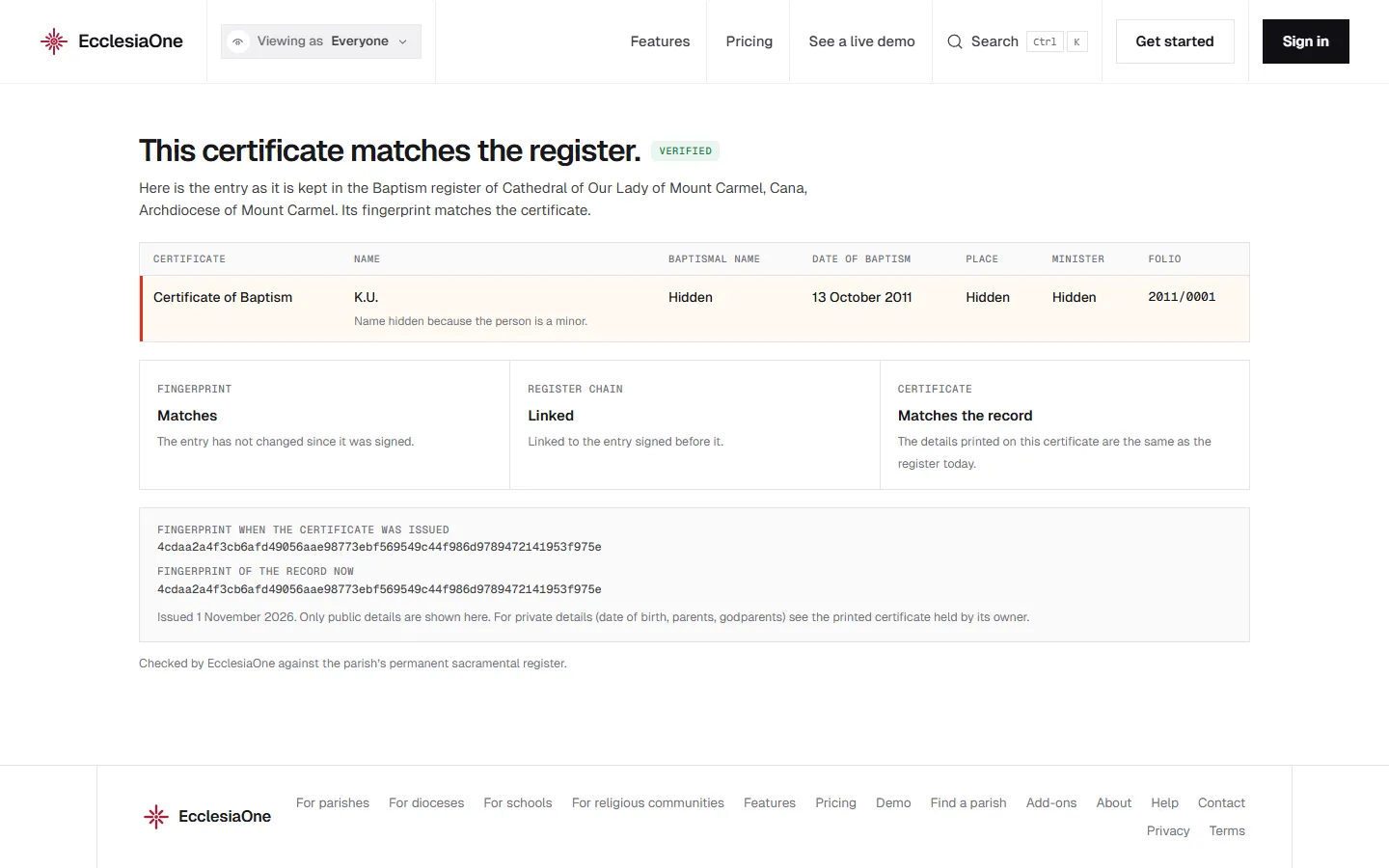
 Anselm's console · sample data
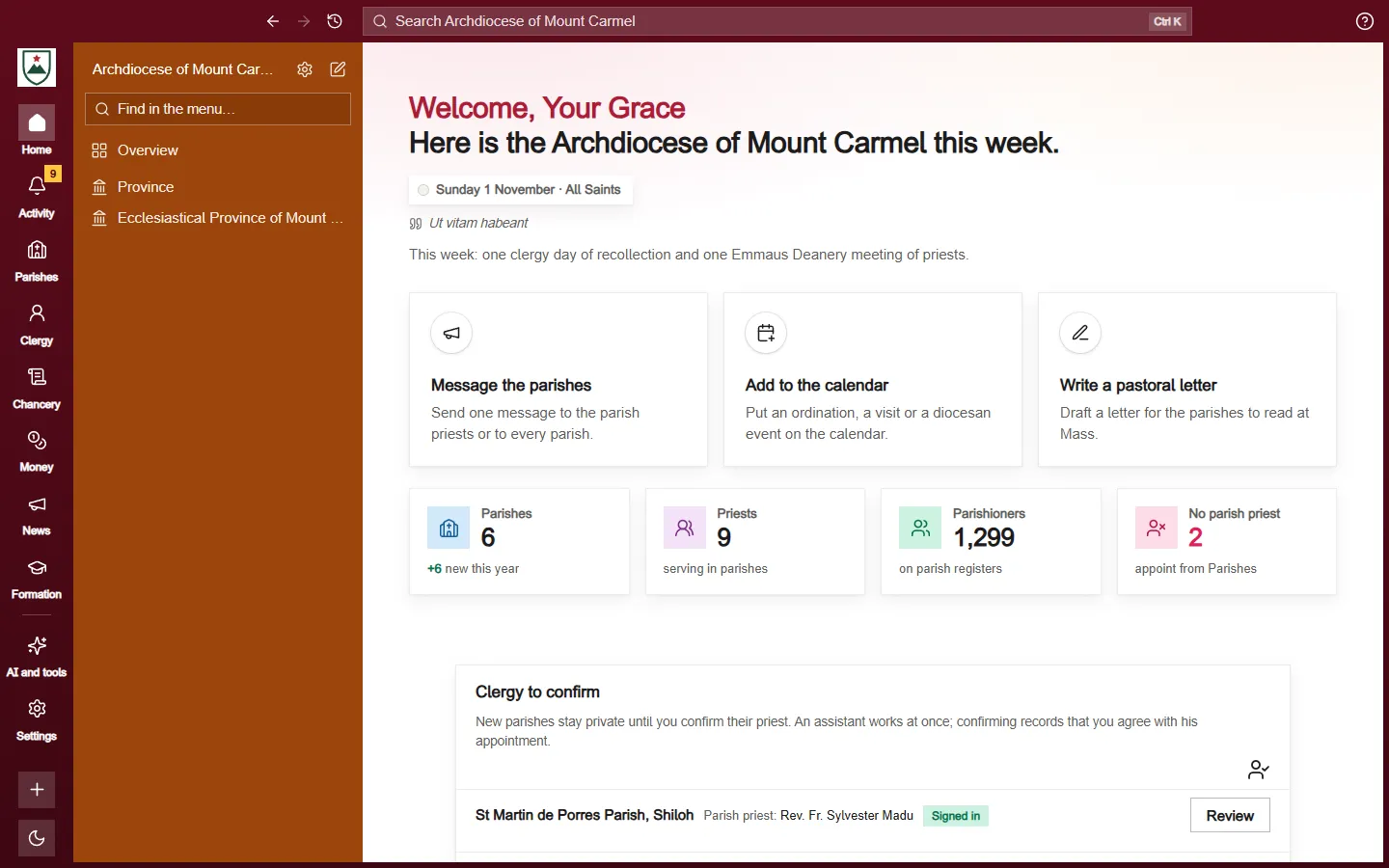
 Dominic's console · sample data
Every website has one overall layout. Look sets its colours, fonts and pictures. Text on your colours is always kept easy to read.
Colours
Under Colours, choose one of the colour pairs. Or press Take colours from my logo and EcclesiaOne suggests the two colours your logo uses most. For exact colours, press Choose my own colours and set a Main colour and an Accent colour.
The preview below shows your home page with your changes. Visitors see them once you press Save.
Fonts
Under Fonts, choose one of three pairs for your headings and your text.
Pictures
Under Pictures, add:
- Logo, shown at the top of every page and in your emails
- Crest or seal, for letters and, if you choose, the foot of your pages
- Banner photo, the wide photo at the top of your home page. With no photo, a card with your logo or initials shows instead.
- Browser tab icon, the small picture in a browser tab. Choose one that stays clear when it's tiny.
Press Add picture or Change picture. Each picture is kept in Photos and files and saves as soon as you choose it. If a picture is the wrong shape, you can crop it, and the original stays in Photos and files.
Logo shape
Under Logo shape, choose how your logo sits at the top and foot of your website: Circle, Square or As uploaded (the whole picture, nothing cut). Tick A thin border round the logo if you want one. Without a logo, your initials keep their circle.
Plan
Choosing fonts and adding pictures here are part of the Pro plan. Colours are open to everyone. If something is locked, a note says On the Pro plan and gives you an Upgrade to Pro button.
Where else colours show
Each section has its own Look tab for its background and spacing. See Editing a section on the page.