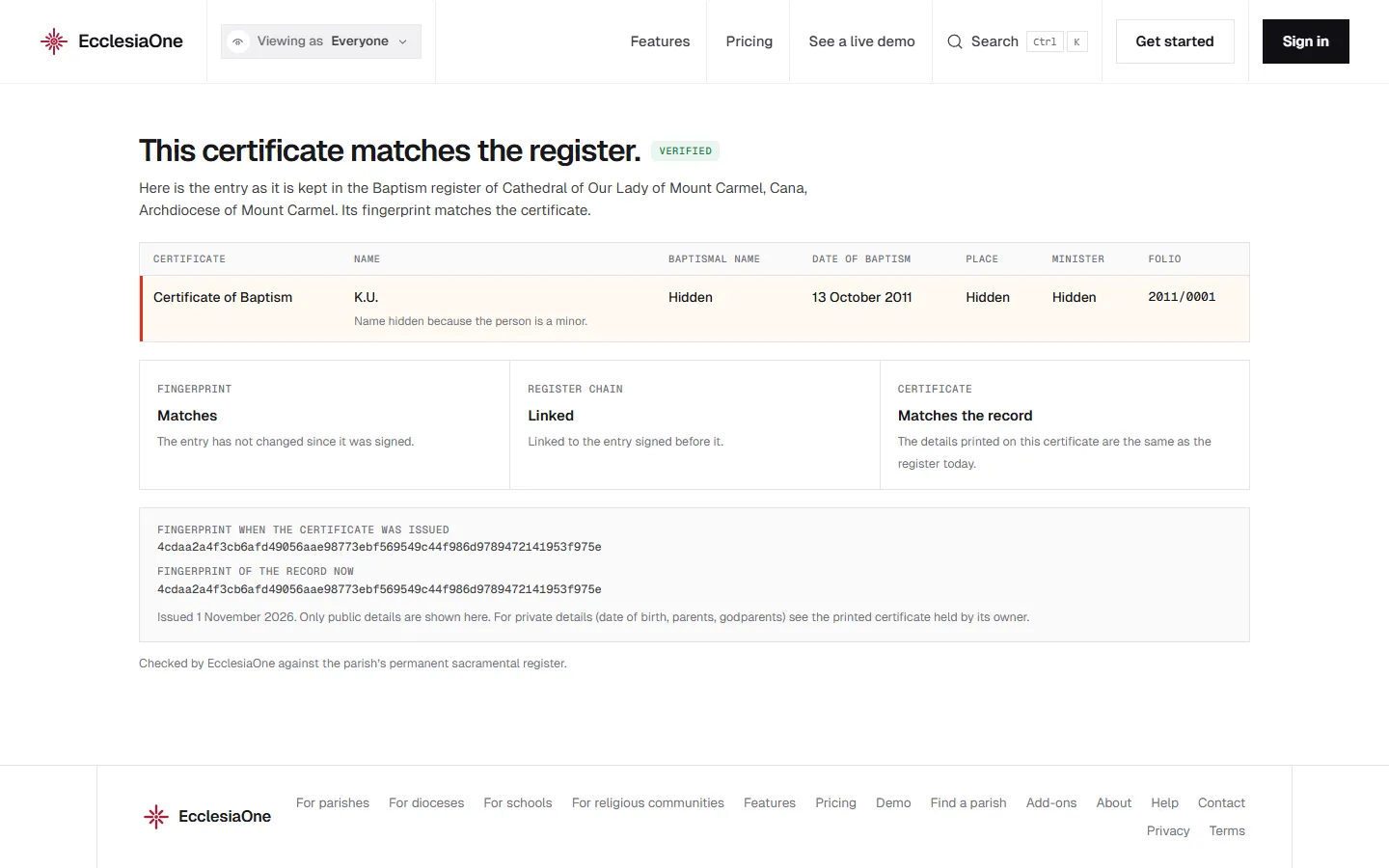
 Anselm's console · sample data
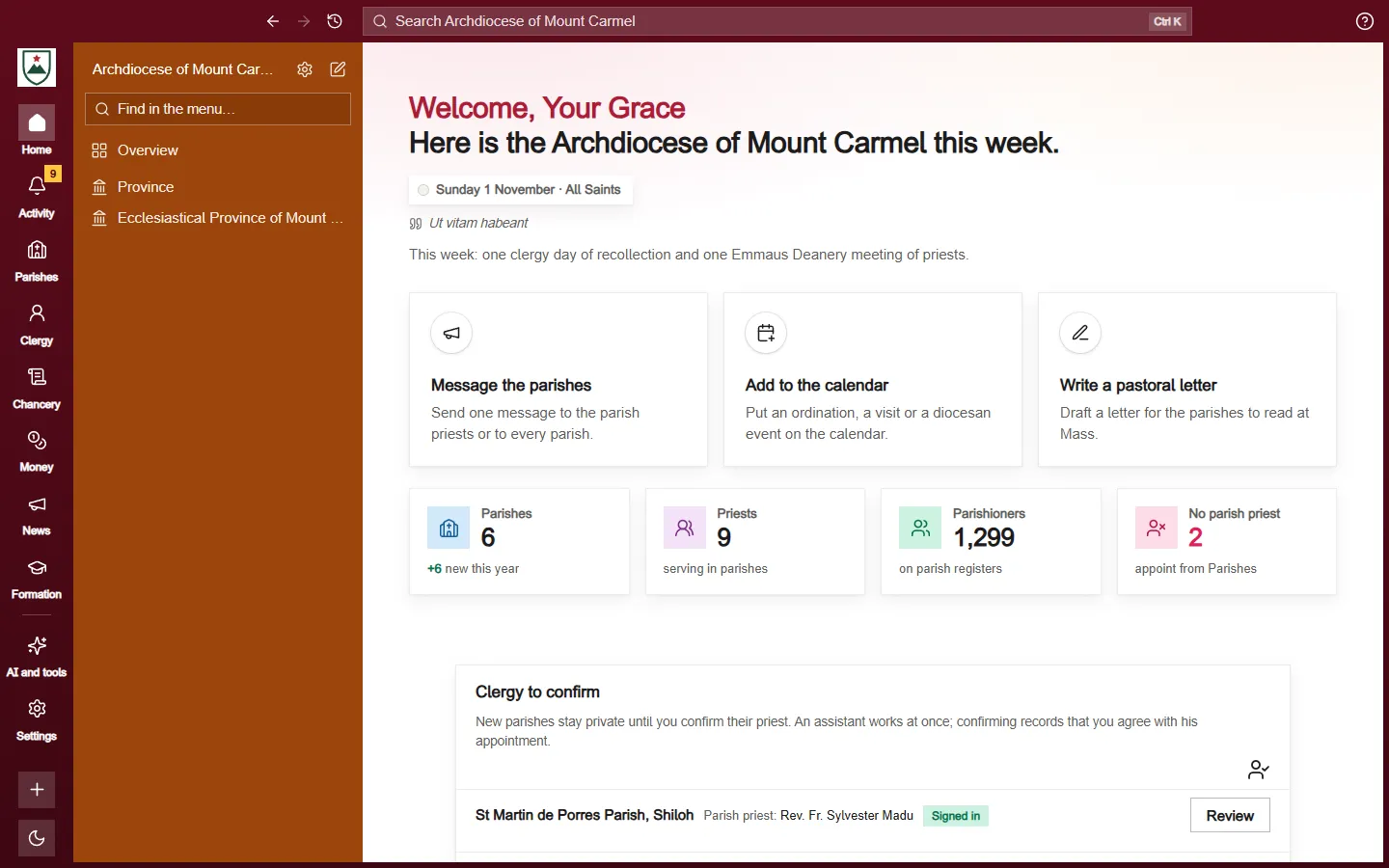
 Dominic's console · sample data
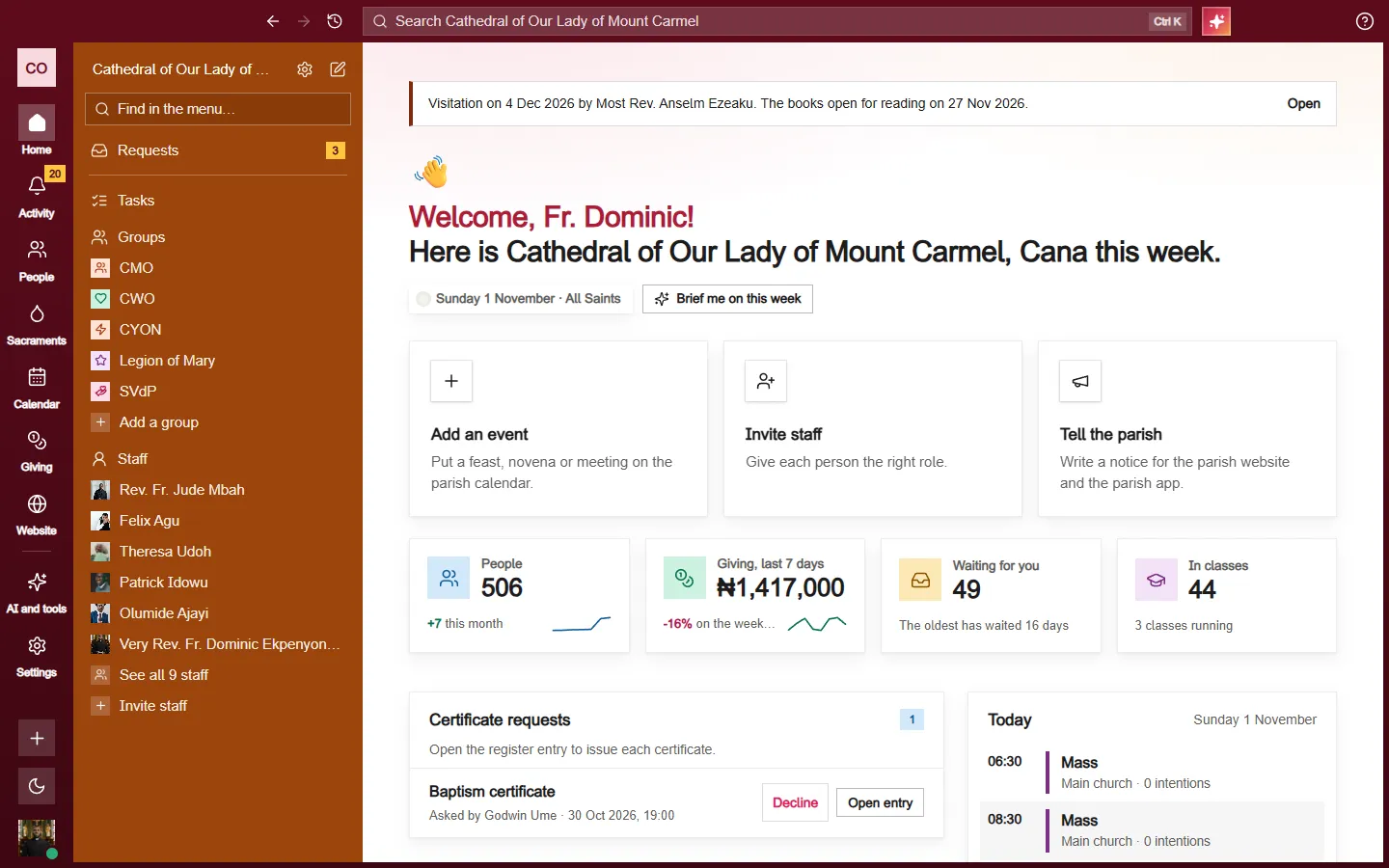
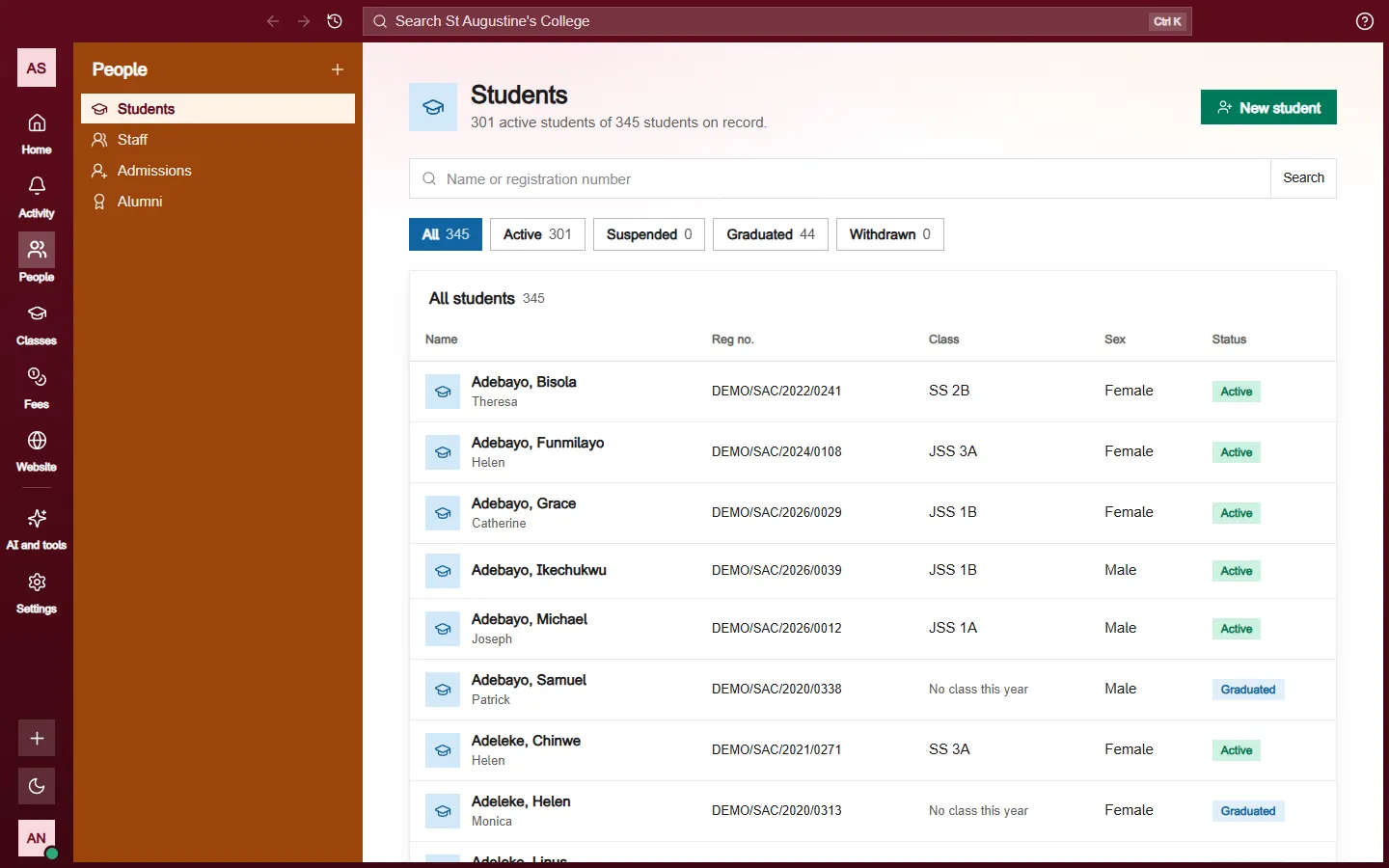
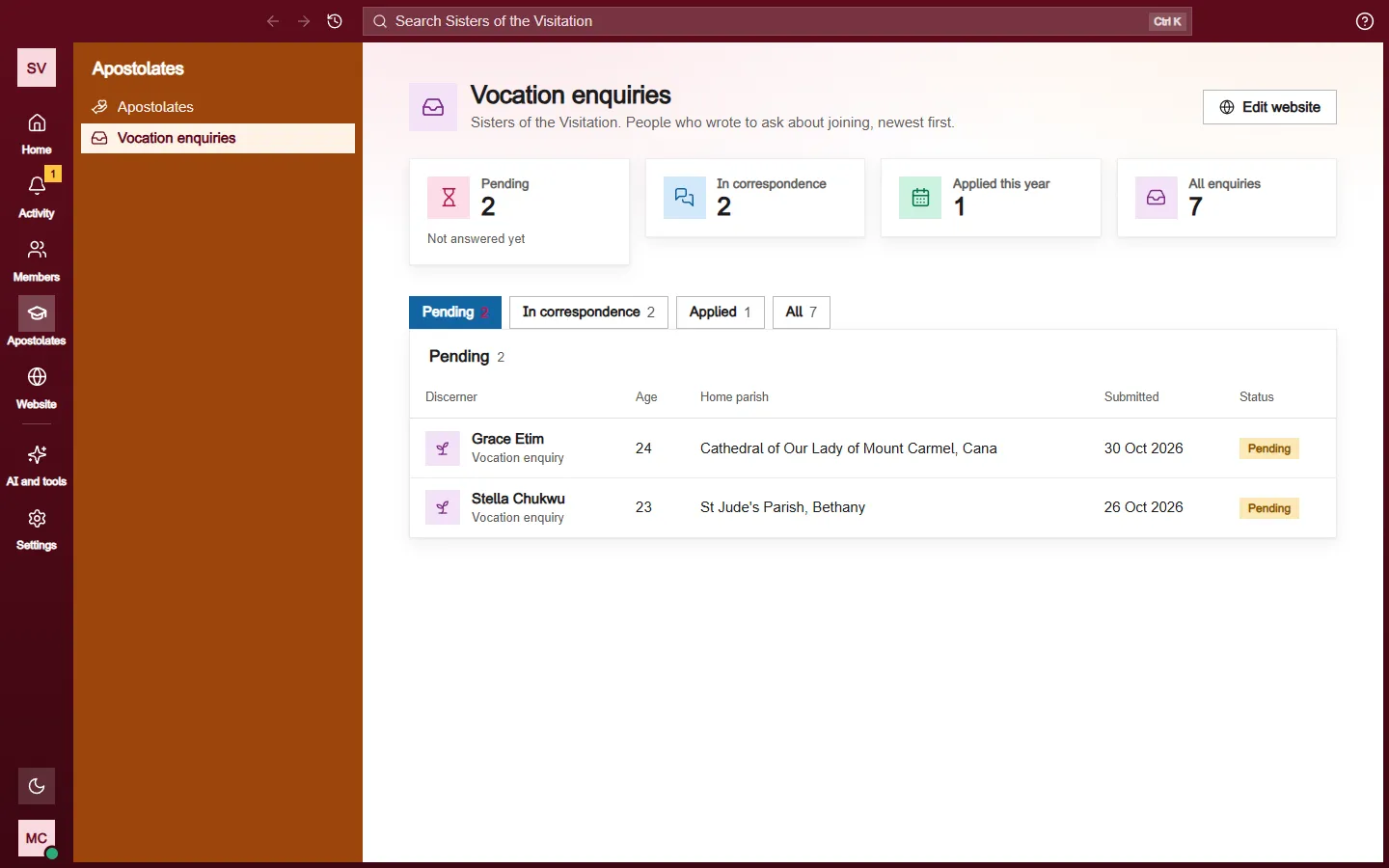
Every parish, diocese and school gets a public website. You build it from the Website menu.
Your first visit
A new site starts with Make your website on the Overview: three short questions, then a finished set of draft pages to check and one Publish my site button. See Making your website on day one. A site that was already started but has no name yet shows a short Quick setup instead, asking for the site's name, a short line under it, and a pair of colours. You can skip either and come back, and you can change every answer later.
After that, the Overview shows a setup list that ticks itself off as you go: the site title, a tagline, your logo, a browser tab icon, your colours, your first published page, a contact form, your clergy and staff, the top menu and the footer. There's also a Take the builder tour button.
What each part does
- Overview. Your site, and what is left to do.
- Pages. The pages of your site. Add one, edit one, publish it. The tabs are All pages, Front page, Sacrament pages and My blocks. See Making a page from a template.
- News. Articles for your site, with How news looks for the article pages.
- Photos and files. Your photos and documents, and Photo albums for visitors.
- Forms. Contact and other forms, and what people sent. See Your Contact page and its form.
- People. Your parish priest's profile, and your clergy and staff.
- Look. Colours, fonts, logo and banner photo. See Colours, fonts, logo and banner.
- Menus. The menu across the top: which pages it shows and in what order.
- Footer. The words at the foot of every page, your social pages and the copyright line.
- Site details. Your name as people say it, your address, phone and email, and the year you were founded. Change a fact here once and every page that shows it follows.
- Web address. The address people type, or your own address.
- Settings. A holding page while you get ready, an announcement across the top, search engines, emails from your forms, and old web addresses.
A good order for a new site
- Fill in Site details with your real address, phone and email.
- Set your Look: colours, logo and banner.
- Start your pages from a template, then edit them. See Editing a section on the page.
- Add your priest's profile and your staff under People.
- Check Menus, then publish. See Publishing and drafts.
While you work, you can turn on the holding page under Settings, so visitors see a short notice instead of a half-finished site.
Who can use it
The parish priest, the parish administrator and the parish secretary can edit a parish website. For a diocese, the bishop, the vicar general, the chancellor, the communications director and the bishop's secretary can. See Your role and what you can do.
Keep it up to date
A few minutes a month keeps the site trustworthy: refresh the banner for the season, keep Mass times current, and check your contact details are right.
New to the console? There's a short guided tour of the parish tools. It starts by itself the first time you open the console, and the "Take a quick tour" button in the corner replays it whenever you like.