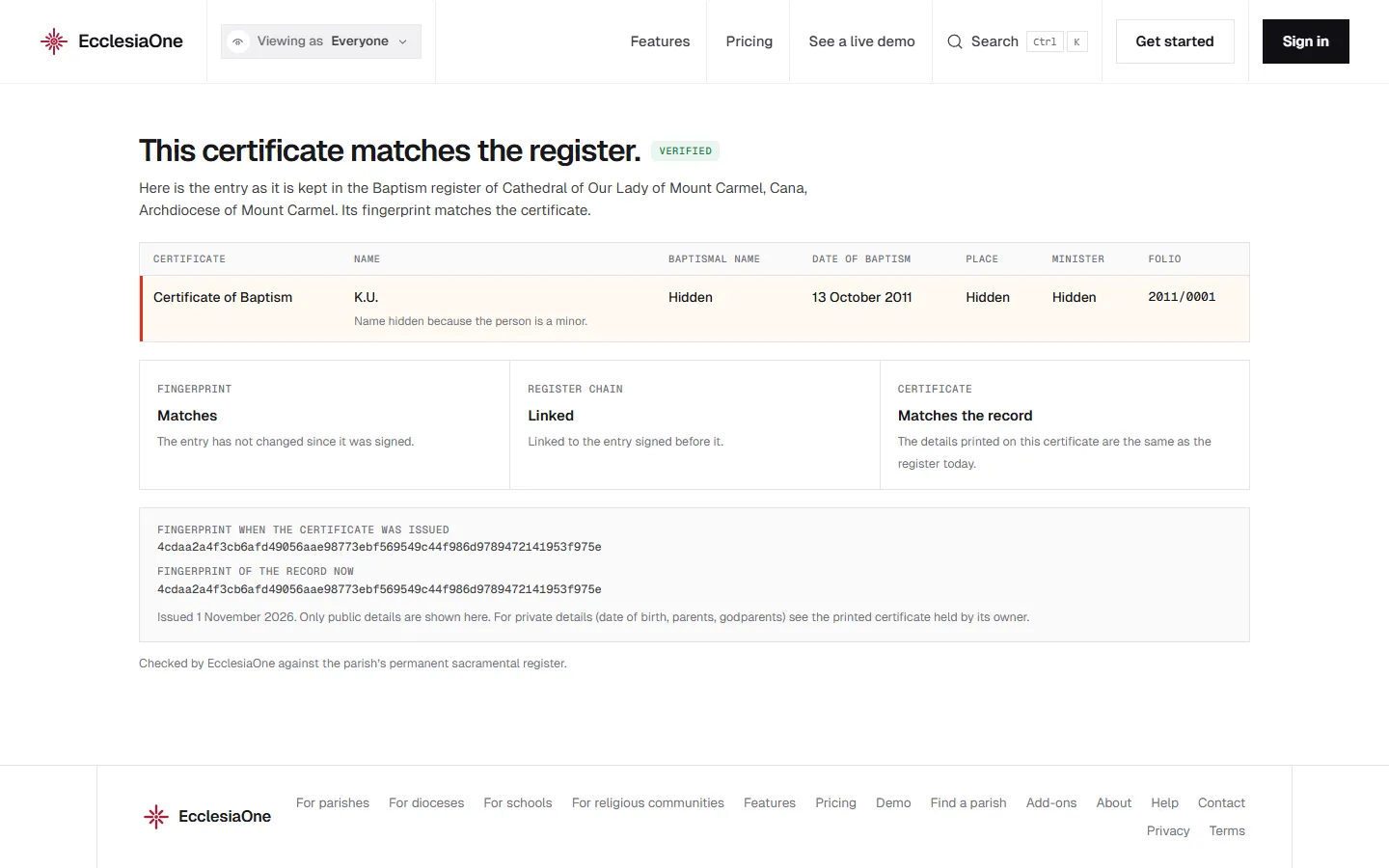
 Anselm's console · sample data
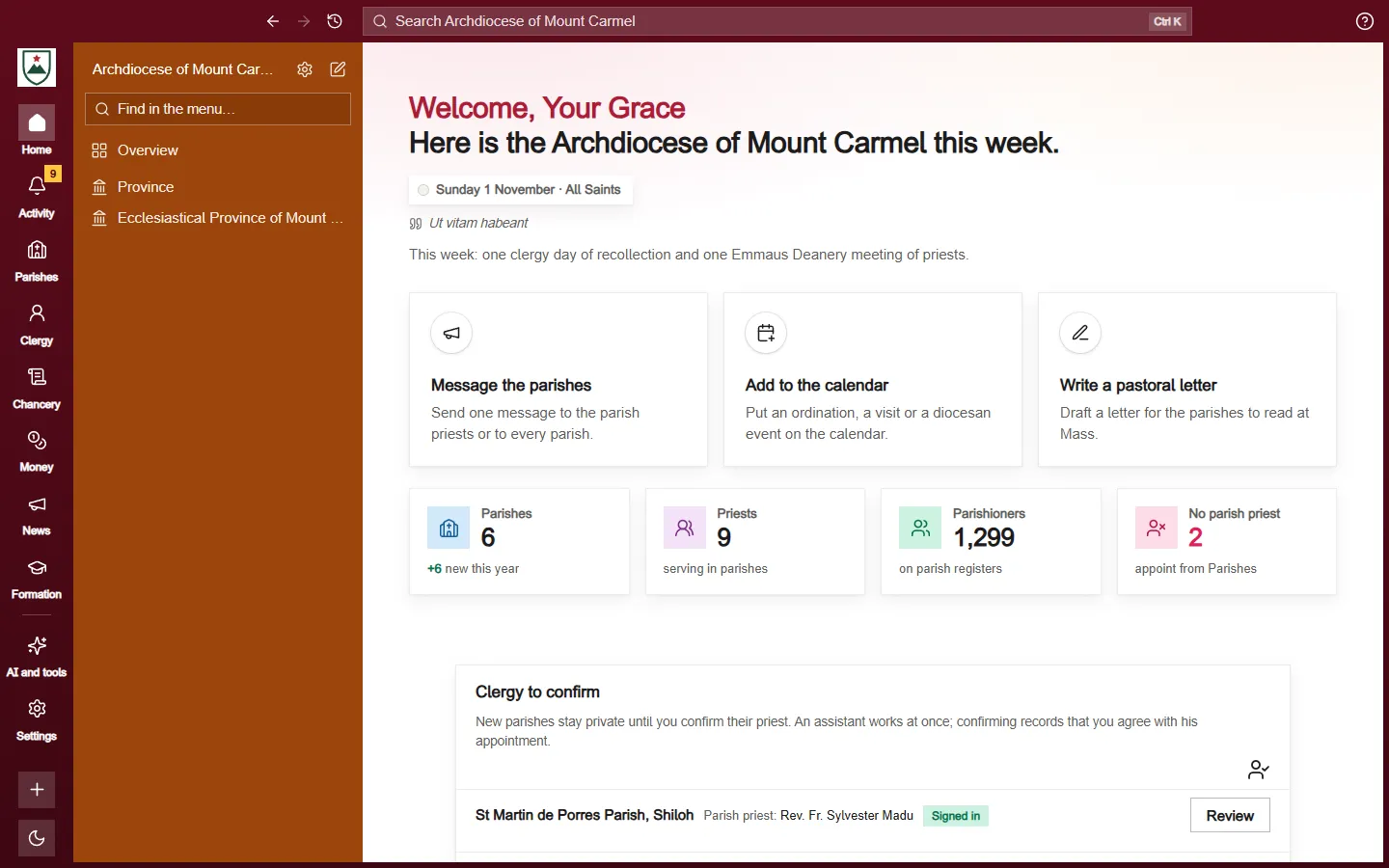
 Dominic's console · sample data
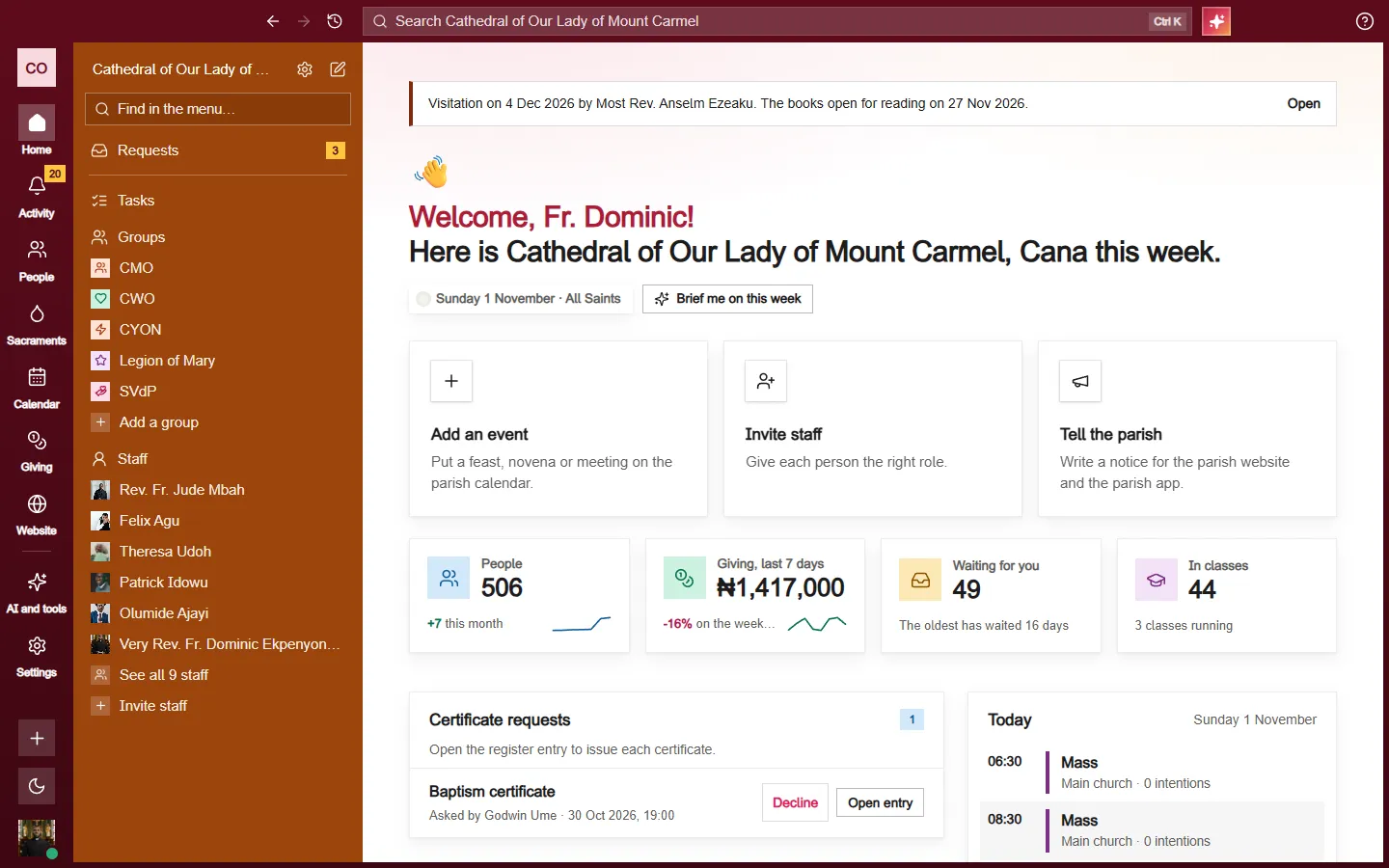
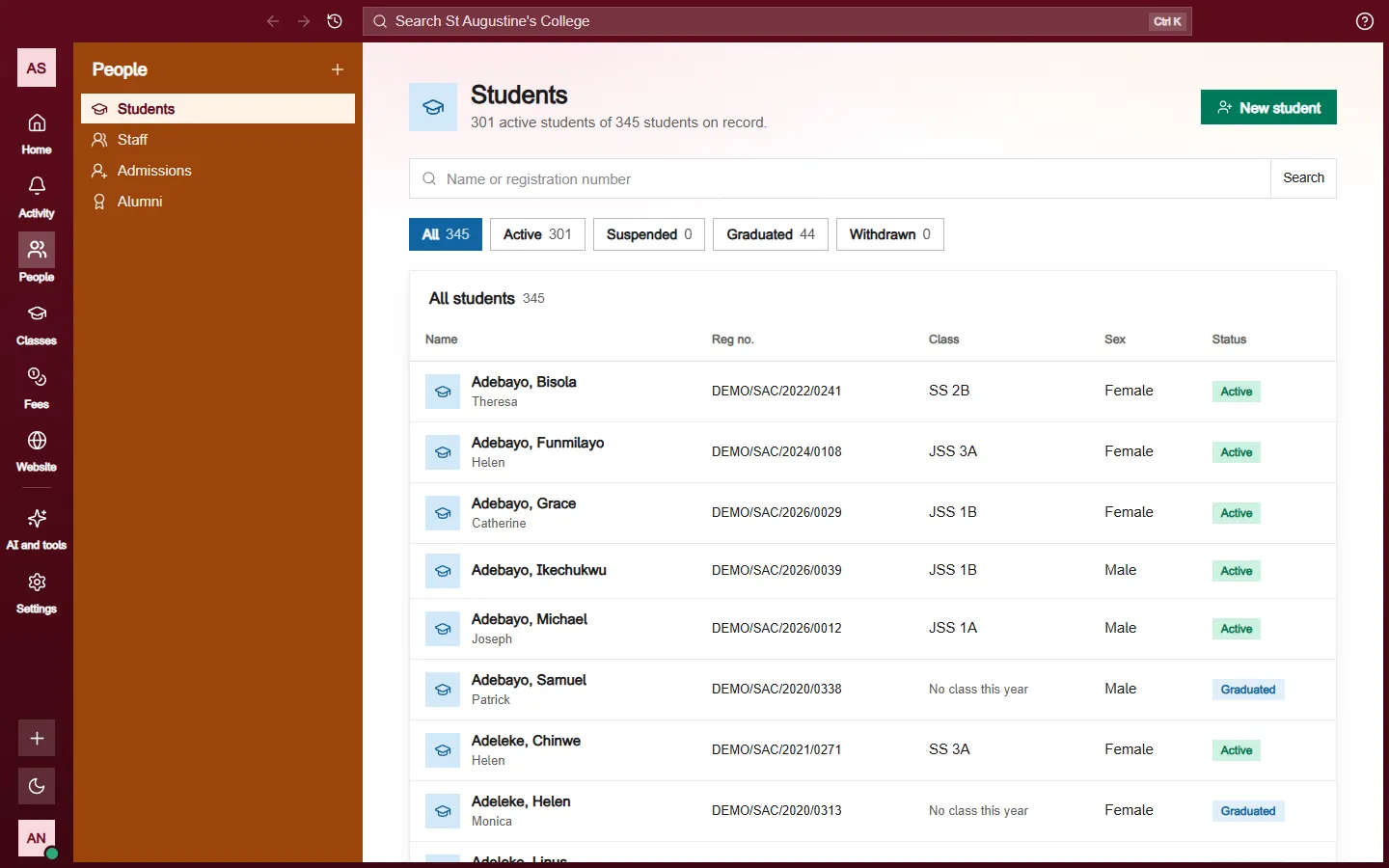
Your school's website
Families find your website at your school's public address, which you can share.
Start at Settings, then Public site. Press Open branding there to set your colours, fonts and logo. Your website uses the standard school layout, and none of this changes the staff console.
Same tools as a parish
A school website uses the same tools as a parish or diocese website:
- Pages. Start from a ready-made page such as Admissions page, Fees, Term dates or Contact. See Making a page from a template.
- Site details. Your school's name as people say it, your address, phone and email.
- Forms. An admissions or contact form, and the messages families send. See Your Contact page and its form.
- Look. Colours, fonts, logo and banner photo. See Colours, fonts, logo and banner.
- Photos and files, Menus, Footer, Web address and Settings.
The principal and the registrar can edit the school website.
What to put on it
Answer the questions a family asks first:
- Who you are: your name, motto and a short welcome in your own voice.
- Where you are, with an address people can find.
- What you teach, and why your school is worth choosing.
- How to reach you, with a phone number and an email someone checks.
- A photo or two of the real school.
Drafts and publishing
Nothing is public until you publish it. See Publishing and drafts. While you get ready, Settings has a holding page and an Announcement bar for notices like admissions opening.
Keep it current
Update it when admissions open or close, when contact details change and when a new school year begins.