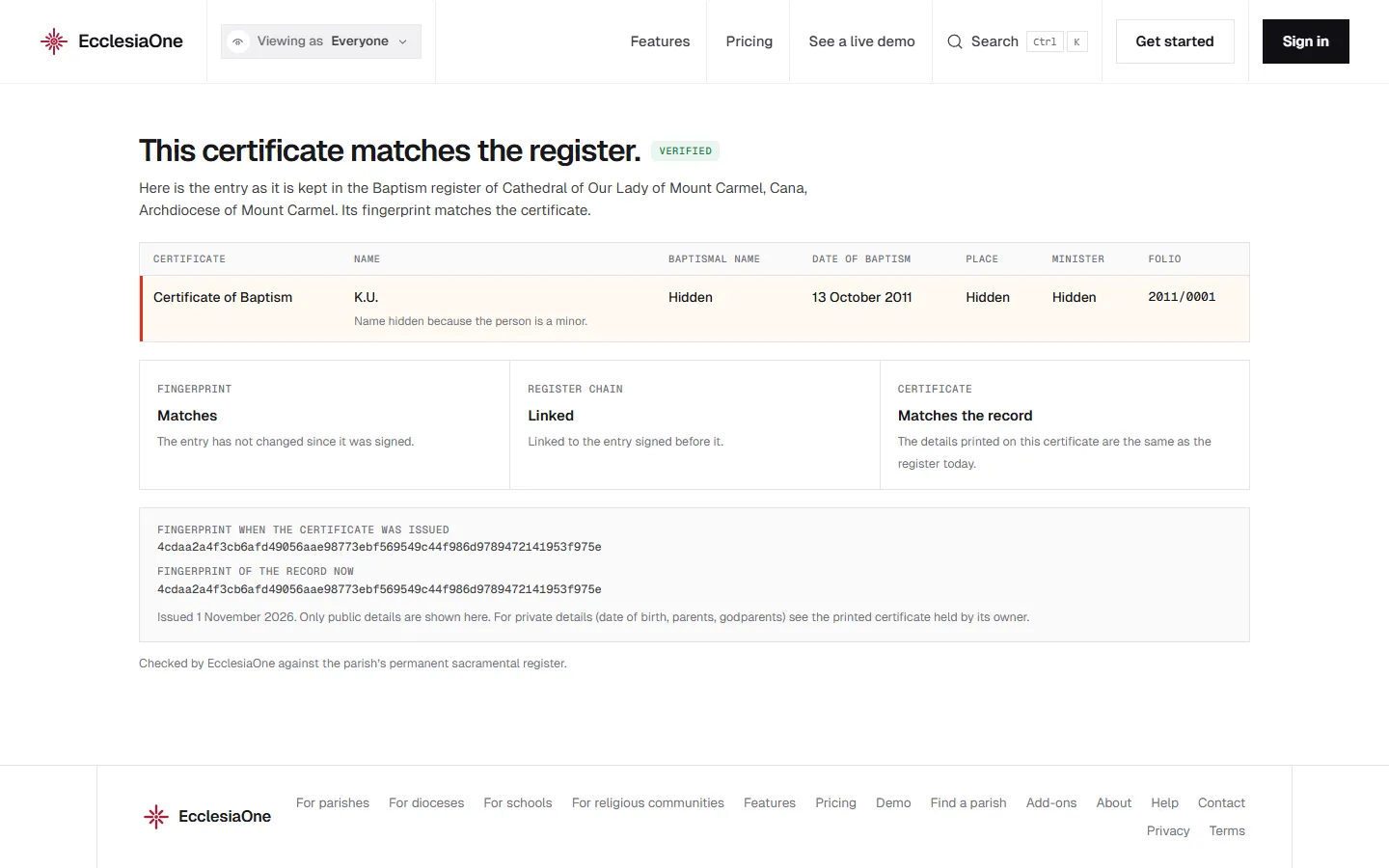
 Anselm's console · sample data
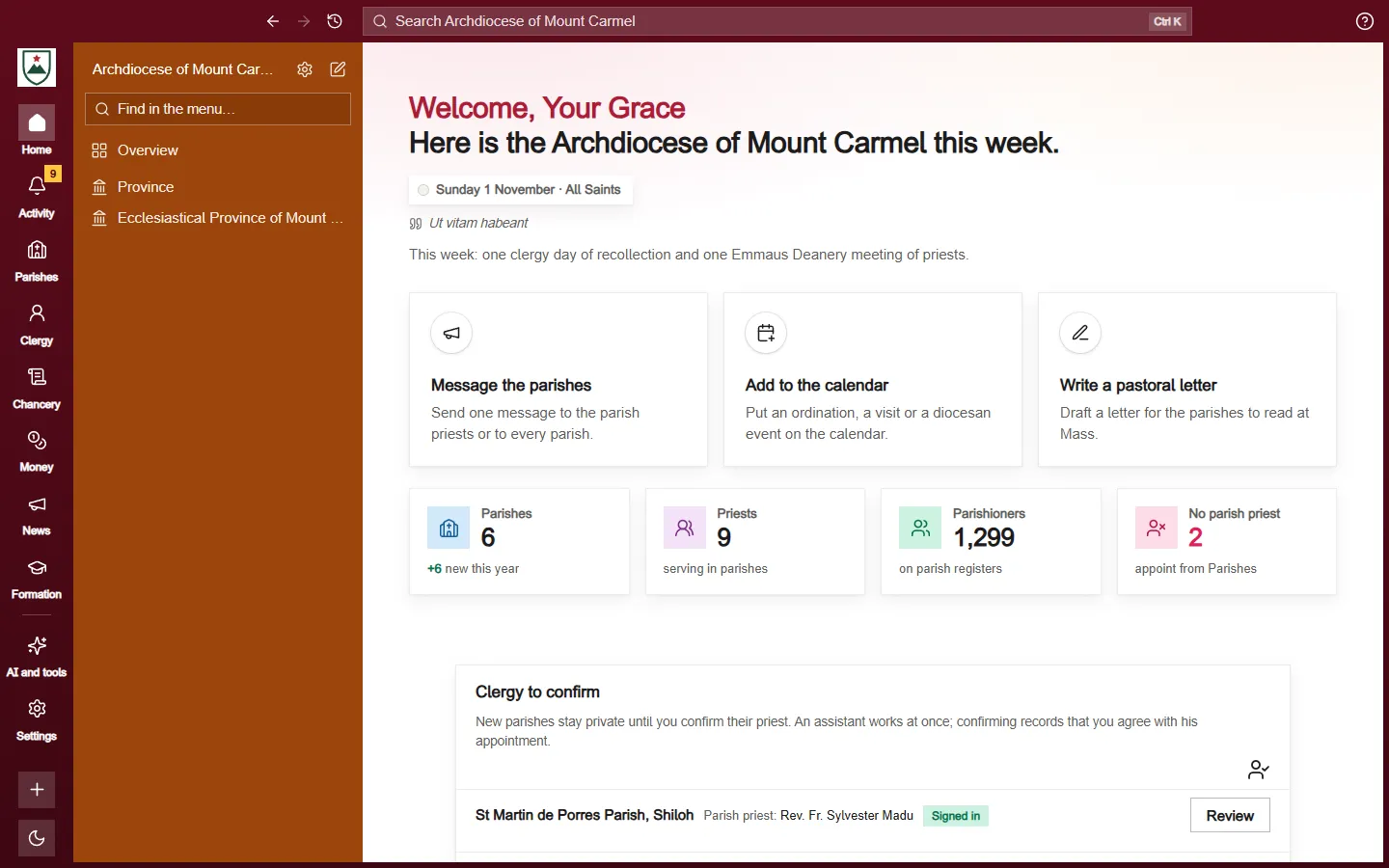
 Dominic's console · sample data
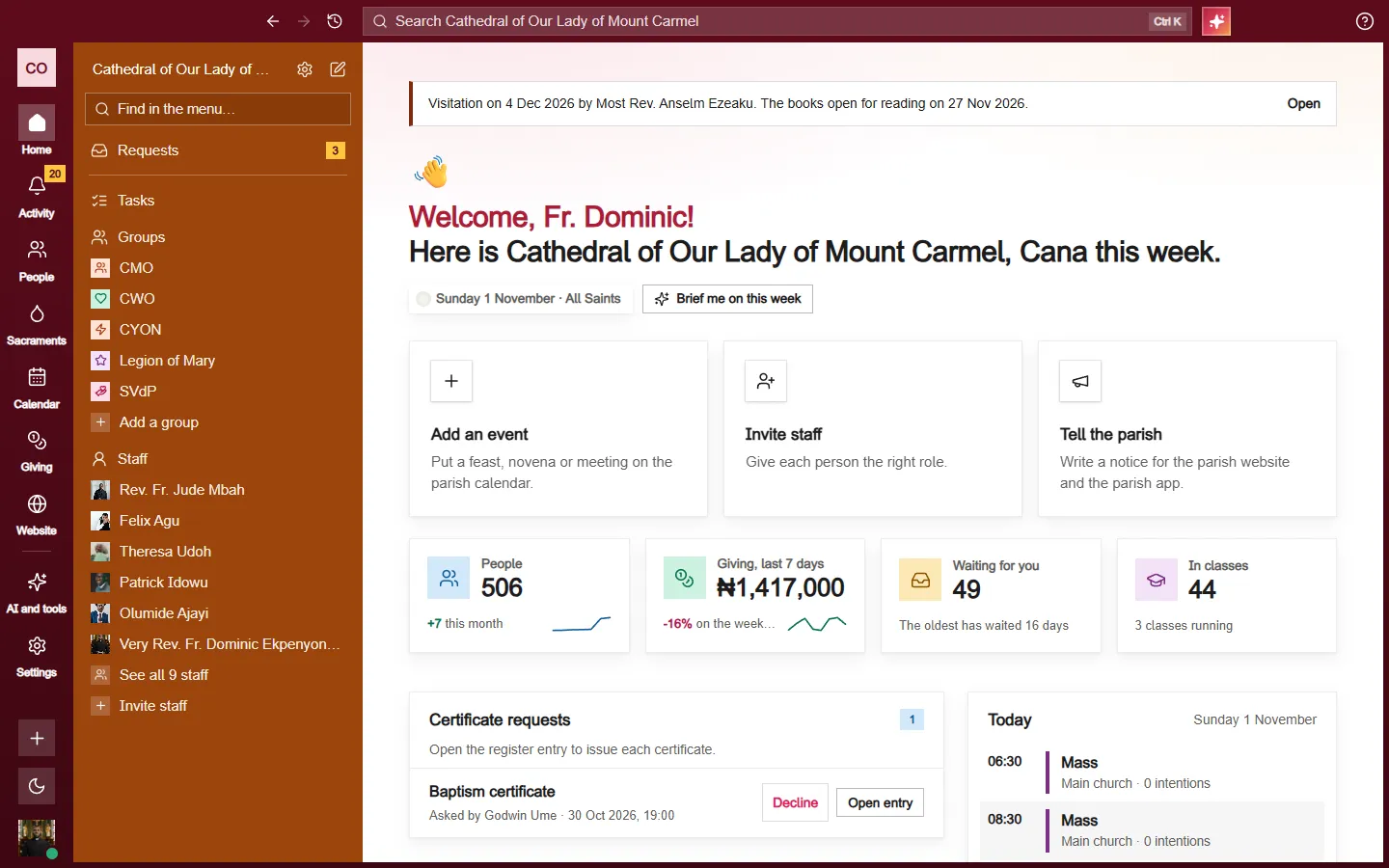
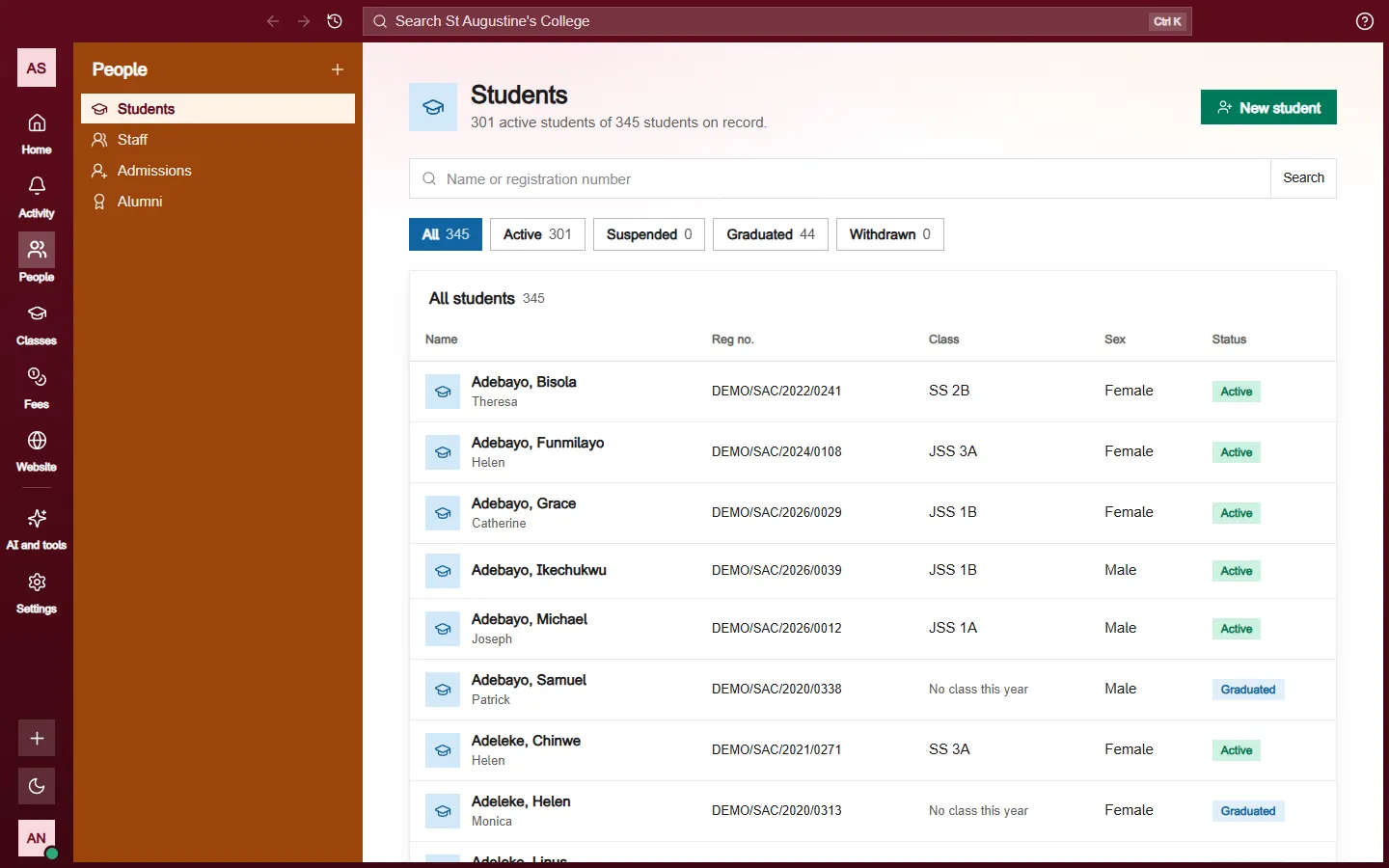
Classes, fees, registers and grades all belong to a school year, and the timetable, exams and gradebook pick from your list of subjects. So a new school sets up both first.
The principal starts and changes school years and terms. The principal and the vice principal add and change subjects. Anyone who can see the classes can look at both pages.
Start the school year
- Open School year and press Start the school year. Once you have a year, the button says Start a school year.
- Type a Name everyone will see, such as 2026/2027 or 2027.
- Choose the First day and the Last day.
- Press Start the school year.
Your first year becomes the current school year. A school year can be at most two years long, and your years can't overlap.
Add the terms
- On the School year page, press Add a term.
- Type a Name, such as First term, Autumn term or Semester 1.
- Choose the First day and the Last day, then press Add the term.
A term has to sit inside its school year, and terms can't overlap. Grades, exams and fee payments are kept by term.
Make another year the current one
The current school year decides which classes, fees and registers everyone sees.
- To set up next year early, start it and leave Make it the current school year now unticked. Tick it only when you want it to take over straight away.
- When you're ready to switch, press Make it current beside the year in the All school years table. EcclesiaOne asks first. The old year keeps all its records, and you can switch back.
Fix a mistake
Nothing on these pages is deleted. If you typed a date or a name wrong, press Change beside the year or the term and save it again. You can't shorten a year so that one of its terms falls outside it.
Add your subjects
- Open Subjects and press Add the first subject. Later the button says Add a subject.
- Type the Name, such as Mathematics.
- Add a Short code if you like, such as MATH. Leave it empty and one is made from the name. The timetable shows it.
- Under Who takes it, you can say who it's for, such as All years or Lower school.
- Press Add the subject.
To fix a subject later, press Change beside it. The list also shows where each subject is used: in lessons, exams and grades.