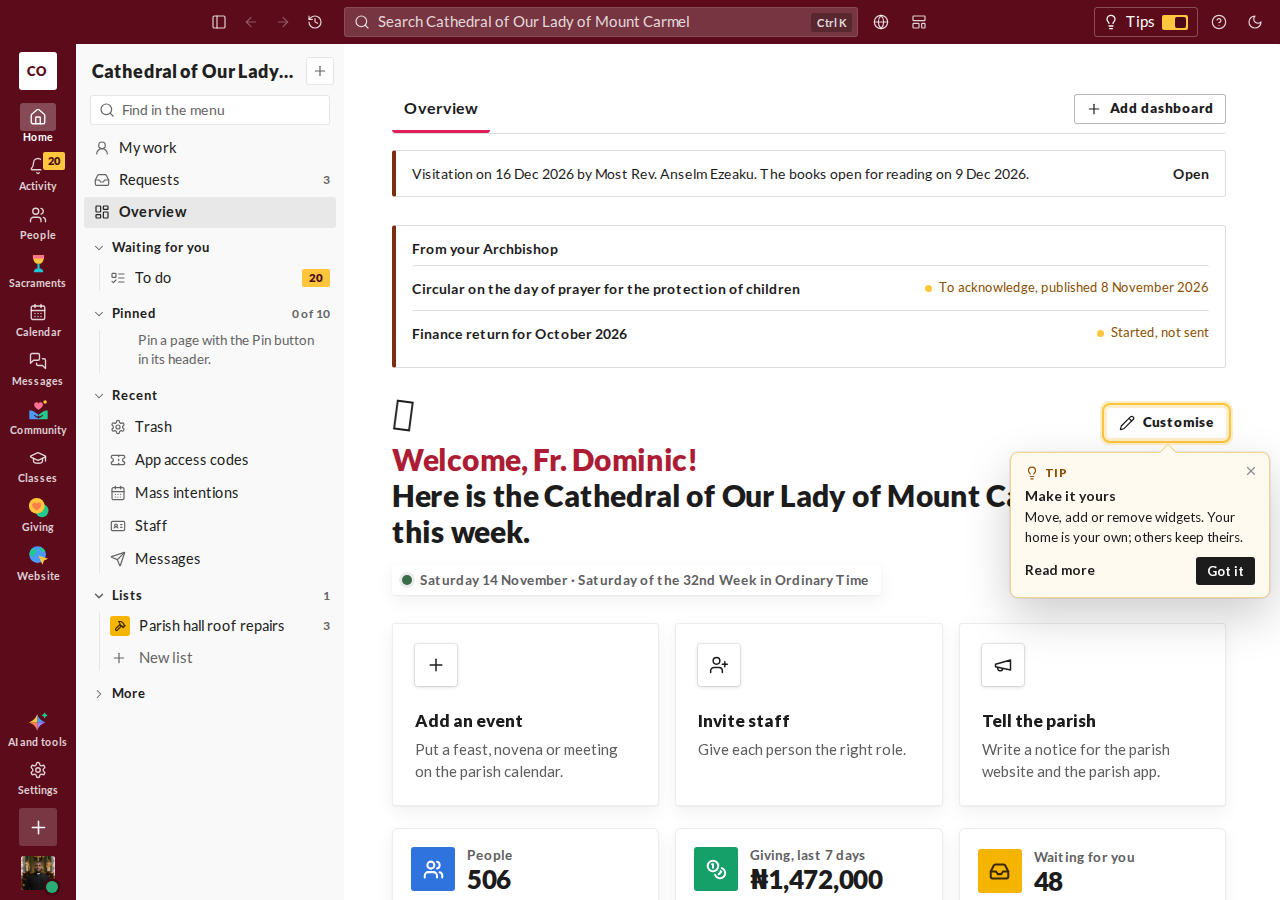
Widgets
Your home is made of widgets, each showing one part of your work. Some show things waiting for you to answer or approve. Open one to deal with it.
You only see widgets your role allows. Rearranging your home can't show you anything your role can't already see.
Change your home with Customise
Press Customise. Then you can:
- Add widgets. Find them by name and add the ones you want. Widgets that need another role are listed apart, and can't be added.
- Move widgets. Drag one by its handle, or use the arrow keys.
- Change their size. On a phone, all widgets are one column wide, in the same order.
- Remove widgets. You can add them back later.
- Start from a template. Choose Templates, then change anything you like. Widgets your role can't see are left out.
While Customise is open, you can also arrange the groups of pinned pages in the menu.
Nothing is kept until you press Save. Preview shows how your home will look. Cancel leaves it as it was, and Reset goes back to where you started.
Dashboards
You can keep several dashboards, as tabs across the top of your home. Overview comes first and is always there.
To add one, press Add dashboard and give it a name, such as Weddings. It can start blank or from one of the starters offered. Then add the widgets you want with Customise.
Open a dashboard's options to rename it, move it or delete it. There is a limit on how many you can have, and the page tells you when you reach it.